Marketo Forms and Pages
Marketo Forms Layouts
There are two primary form layouts: Simple and Inline. Each layout has there own advantages and disadvantages. Both are meant to standardize marketo form layouts and styles on Marketo Landing pages and embedded on a Winsight website.
Simple Form Layout
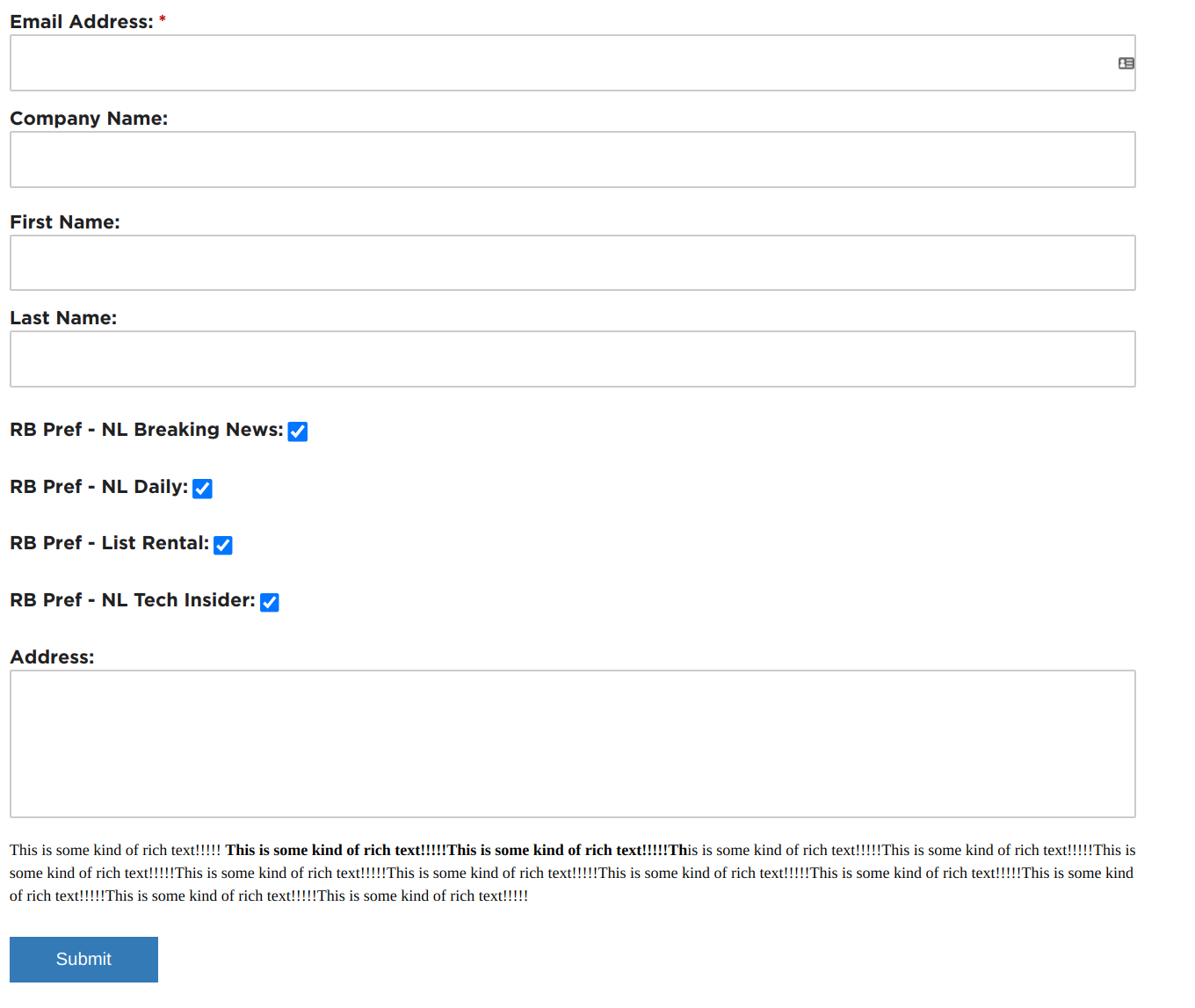
The Simple Form Layout extend all fields to 100% of the container that it is placed into, as seen from the figure below. This layout makes it well suited for smaller containers or simple forms.
This can be implemented by wrapping a marketo form with a div that has the classes wsFormLayout Simple
Or when choosing what Form Layout (Simple, Inline) in the Marketo Page variables, typing Simple should accomplish the same thing, as the template developer should implement the classes with a template variable: wsFormLayout ${formLayout}
Inline Form Layout
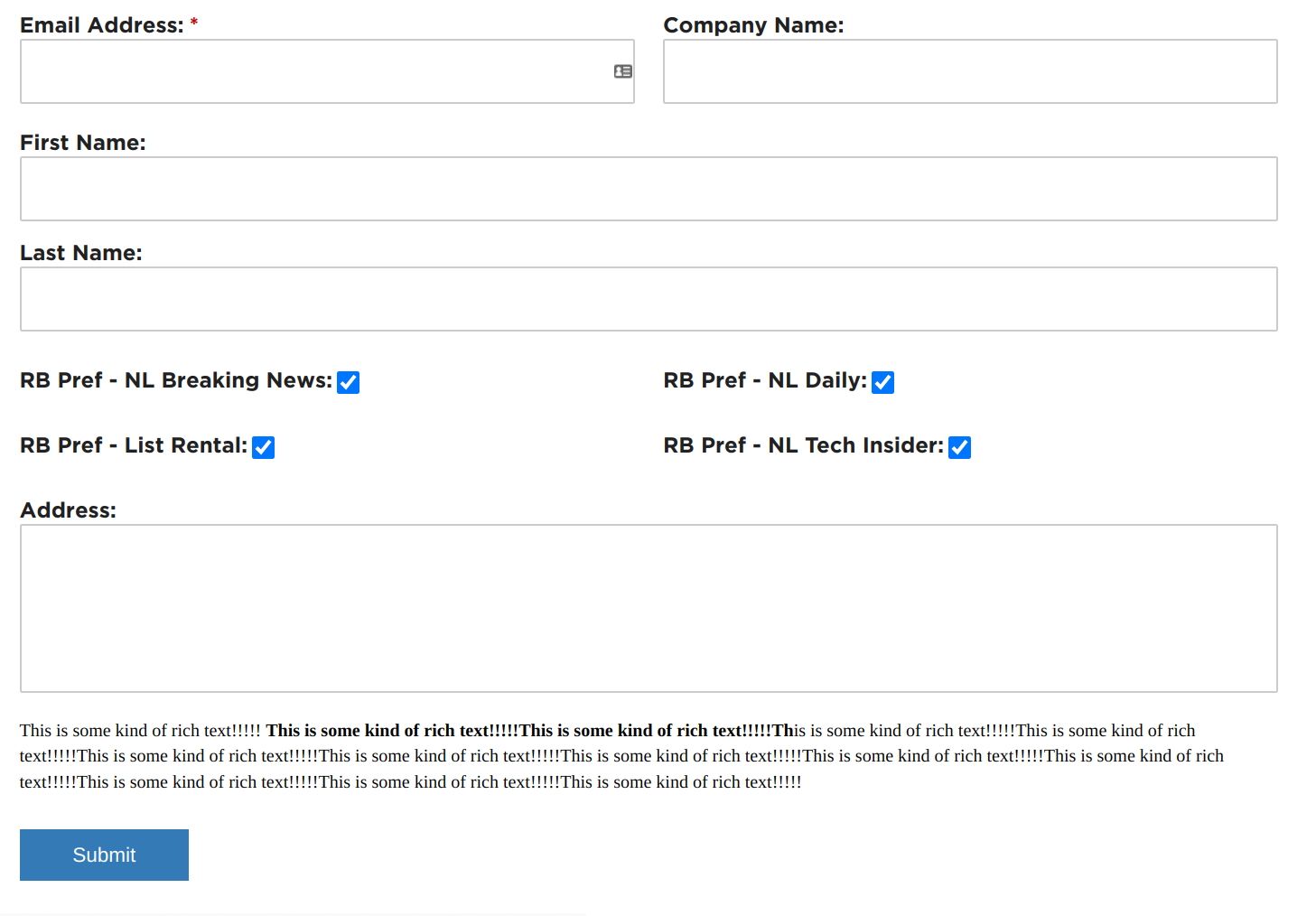
The Inline Form Layout extend all fields to 50% of the container that it is placed into, as seen from the figure below. The exception to this is when fields are added to a Marketo Fieldset; in this case, the fields then extend for 100% of the container's width. This layout makes it well suited for larger containers or forms needing more complexity.
This can be implemented by wrapping a marketo form with a div that has the classes wsFormLayout Inline
Or when choosing what Form Layout (Simple, Inline) in the Marketo Page variables, typing Inline should accomplish the same thing, as the template developer should implement the classes with a template variable: wsFormLayout ${formLayout}
Forms Implementation
When implementing forms either on Marketo Page Template or embed into a webpage you will need these items:
- Marketo Form's Embed Code OR Marketo Landing Page Forms code
- Wrap the code that loads the form with the apprioprate classes
wsFormLayout ${formLayout}wsFormLayout SimplewsFormLayout Inline- Stylesheet for Marketo's implementation from it's respective Media site
- Marketo Template:
<link rel="stylesheet" href=${siteURL}/assets/${siteAcronym}/css/marketo-pages.css" />
Also you will need the Site's URL:<meta class="mktoString" id="siteURL" mktoName="Site URL" default="https://restaurantbusinessonline.com">
Also you will need the Site's Acronym:<meta class="mktoString" id="siteAcronym" mktoName="Site Acronym" default="rb">- rb
- cspdn
- fsd
- gb
- You will need the custom JS file for Inline Form Layouts and the AutoComplete feature:
- Media Embed:
<script src="/assets/common/scripts/base-marketo.js"></script> - Marketo Template:
<script src="${siteURL}/assets/common/scripts/base-marketo.js"></script>
Also you will need the Site's URL:<meta class="mktoString" id="siteURL" mktoName="Site URL" default="https://restaurantbusinessonline.com"> - For the AutoComplete feature you will need the AutoComplete plugin:
<script src="https://winsight-cdn.s3.us-east-2.amazonaws.com/platform/files/common/forms/awesomplete.min.js"></script> - JQuery is also needed on the Marketo Template header:
<script src="https://ajax.googleapis.com/ajax/libs/jquery/3.6.0/jquery.min.js"></script>